
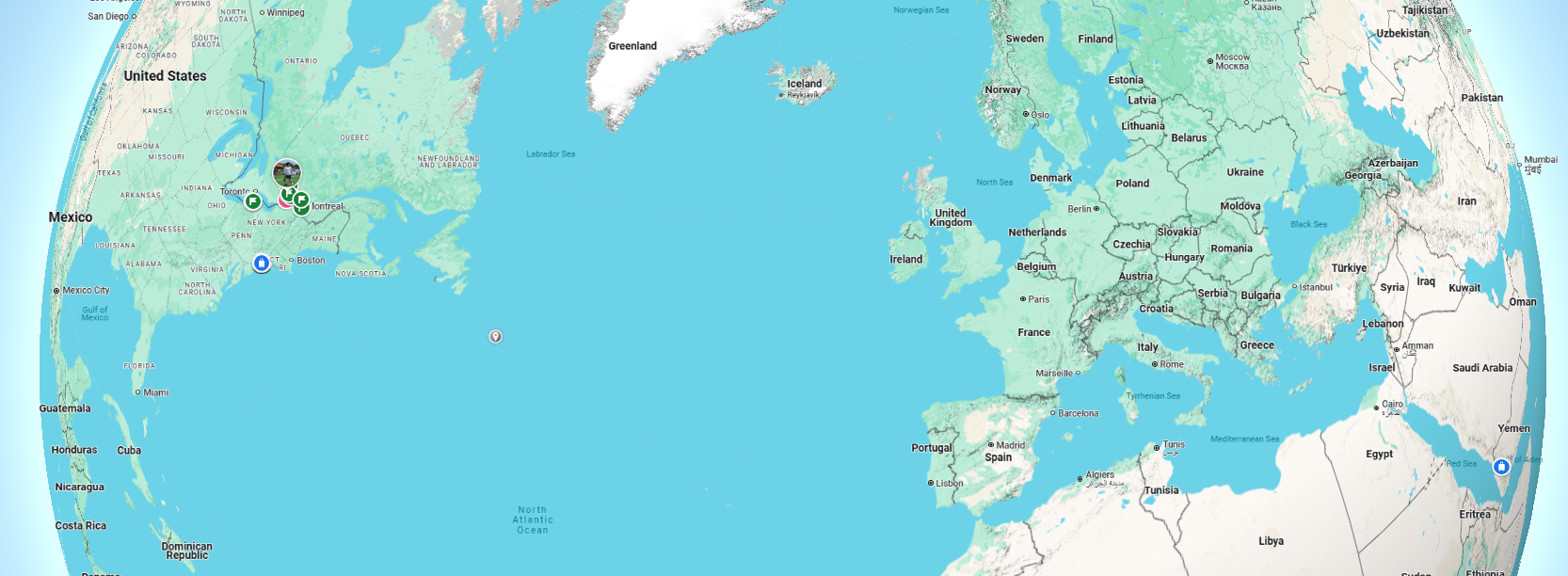
How to Use Google Maps for Routes, Stops and Offline Navigation
Google Maps can do much more than provide a basic driving route. You can compare travel modes, add stops, avoid tolls, share directions, download offline areas, and use navigation through Android Auto, Apple CarPlay, or compatible vehicles.
This practical guide covers the features most people need, along with the limitations that matter before a long trip.
How to get directions in Google Maps
On Android or iPhone
- Open the Google Maps app.
- Search for a destination or tap it on the map.
- Tap Directions.
- Confirm or change the starting point.
- Select driving, transit, walking, cycling, or another available mode.
- Review the suggested routes, time estimates, toll information, and warnings.
- Tap Start for turn-by-turn navigation.
On a computer
- Open Google Maps in a browser.
- Click Directions.
- Enter the starting point and destination.
- Select the travel mode and compare routes.
- Send the route to your phone, share the link, or print directions.
Choose the right route, not just the first route
The highlighted route is usually Google’s recommended option based on factors such as estimated travel time, road conditions, and route settings. Alternatives may appear in grey. Before leaving, compare:
- Estimated arrival time
- Distance and number of turns
- Tolls, ferries, or highways
- Current traffic and incidents
- Road closures or seasonal restrictions
- Whether the route crosses a border
- Fuel, charging, parking, and rest-stop needs
Route estimates can change while you travel. Construction, weather, mobile-data interruptions, and delayed traffic reports can all affect accuracy.
How to avoid tolls, highways, or ferries
After selecting a driving route, open the route options menu. Depending on your device and region, you may see options to avoid tolls, highways, or ferries. Treat these as preferences rather than guarantees. Review the full route because avoiding one feature may add substantial time or distance.
How to add multiple stops
- Create a driving route.
- Open the menu and select Add stop.
- Enter the additional destination.
- Repeat for other stops, subject to the app’s current limit.
- Drag the stops into the desired order when that option is available.
Google Maps may not optimize the stop order for the shortest overall trip. For a complex delivery route or many appointments, compare the sequence manually or use specialized route-optimization software.
How to find useful places along your route
While navigating, you can search for categories such as gas stations, restaurants, coffee, groceries, parking, or electric-vehicle chargers. Maps will normally show the expected detour and updated arrival time.
For important stops, verify current hours and access details. Business listings can be outdated, and a charger, seasonal road, or border crossing may have restrictions not fully reflected in the app.
Download Google Maps for offline navigation
Offline maps are valuable when travelling through areas with weak service or expensive roaming.
- Connect to the internet and open Google Maps.
- Tap your profile picture or initial.
- Select Offline maps.
- Choose Select your own map.
- Adjust the rectangle to cover the entire route area.
- Tap Download.
Google notes that offline availability varies by country or region. Offline maps can support driving when the entire route is inside the downloaded area, but live traffic, alternate routes, and some other features are unavailable. Transit, cycling, and walking directions generally do not work offline.
Offline-map checklist before a road trip
- Download every region through which you will travel.
- Update the maps before departure.
- Save your hotel, destination, parking location, and key stops.
- Carry a charging cable and backup power source.
- Write down critical addresses and phone numbers.
- Do not rely on a route that requires an internet connection at a border or remote junction.
Share, send, or print directions
Google Maps can share a place, route, or directions link through messaging and other apps. On a computer, you may also send directions to a signed-in phone or print them. A shared route can be recalculated when the recipient opens it, so the exact road sequence may change with conditions or settings.
For a group trip, share the destination and planned stops separately, not only a navigation session. This makes recovery easier if someone loses connectivity.
Use Google Maps in your car
Android Auto and Apple CarPlay
Connect the phone using the vehicle’s supported wired or wireless method, then open Google Maps on the dashboard. Voice commands can reduce distraction when entering destinations or adding a stop. Available functions vary by phone, vehicle, and software version.
Vehicles with Google built in
Some vehicles run Google Maps directly. Electric vehicles may show battery estimates, compatible charging stops, and expected charging time. Vehicle-integrated features depend on the manufacturer and data connection.
Privacy and location sharing
Navigation requires location access while in use. Optional features such as Timeline, saved places, account synchronization, and real-time location sharing involve additional data. Review Google Account and device location settings and enable only the features you want.
When sharing live location, confirm the recipient and duration. Stop sharing when it is no longer needed.
Common Google Maps problems and fixes
| Problem | What to try |
|---|---|
| Location dot is inaccurate | Enable precise location, recalibrate, move away from obstructions, and restart location services |
| No route appears | Check connectivity, travel mode, road restrictions, and whether the destination pin is accessible |
| Voice navigation is silent | Check media volume, Bluetooth output, muted guidance, and app permissions |
| Route keeps changing | Review traffic rerouting settings and stop safely before selecting another route |
| Offline navigation fails | Confirm the full route lies inside updated downloaded areas |
| Business or road information is wrong | Use the app’s edit or report-a-problem feature |
Safety tips
- Set the destination and route before moving.
- Use a secure phone mount and voice guidance.
- Never follow a route onto a closed, unsafe, private, or unsuitable road.
- Obey posted signs and local laws over app instructions.
- Pull over safely before making complicated changes.
- Check weather and official road information for remote or winter travel.
Frequently asked questions
Can Google Maps optimize several stops automatically?
You can add and rearrange stops, but the app may not calculate the best overall sequence for a complex route. Specialized optimization tools are better for many stops.
Can I use Google Maps without mobile data?
Yes, for supported driving routes within downloaded offline areas. You will lose live traffic, alternate routes, and other connected features.
Why does the route change after I start driving?
Maps may detect traffic, an incident, a missed turn, or a faster alternative. Review major route changes when it is safe to do so.
Does Google Maps include every toll?
Toll information and estimated prices vary by location and may not reflect every fee, vehicle class, pass discount, or dynamic charge. Verify expensive or unfamiliar toll roads separately.
Bottom line
Google Maps is most reliable when you combine its live routing with basic trip preparation. Compare alternatives, verify critical stops, download offline coverage, and keep your attention on real road conditions rather than following the app blindly.
References
- Google Maps Help: Use navigation
- Google Maps Help: Download areas and navigate offline
- Google Maps Help: Share, send, or print directions
- Google Maps Help: Report data or content errors
Features and menu names may vary by region, device, vehicle, and app version. Reviewed under EverydayNext’s editorial standards.
Related Posts


Previous Post
Next Post










Polish News
The clarity and simplicity of your writing are a perfect complement to the depth of the ideas you explore.