
How to Change Alexa’s Voice: Step-by-Step Guide for 2026
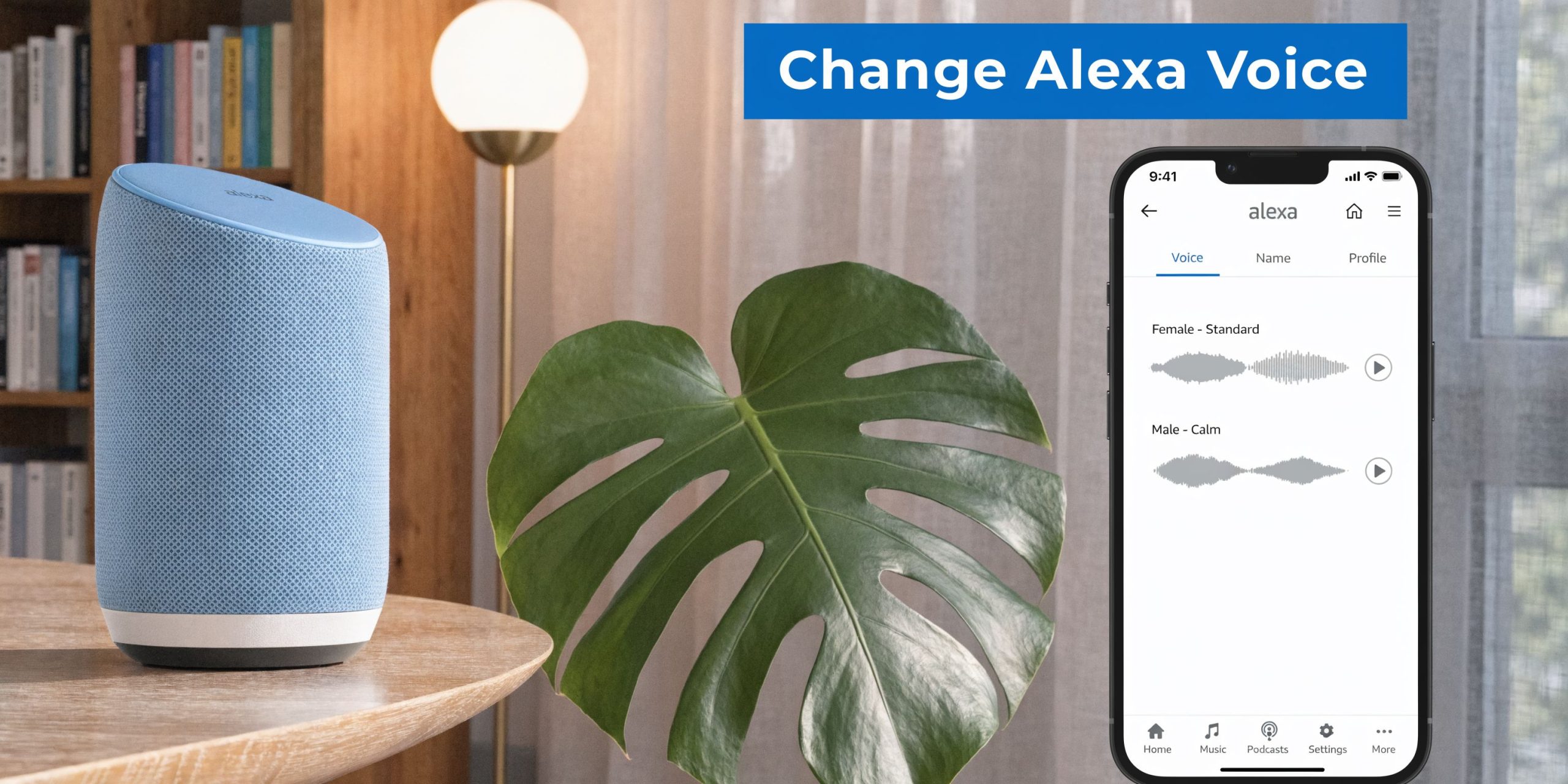
Reviewed September 25, 2026. You can change Alexa’s voice by saying “Alexa, change your voice,” or by opening the Alexa app and selecting Devices, your Echo device, Device Settings, and Alexa’s Voice. Available voices depend on the device, account, language, and region, so your screen may not show every option described online.
This guide separates four settings people often confuse: the speaking voice, device language or accent, speaking speed, and wake word. The steps are based on Amazon’s current Alexa voice instructions, language instructions, and voice-response settings.
If you are deciding how voice assistants fit into your routines, see our practical guides to using AI in daily life, AI in everyday life, and natural language processing examples.
The Quickest Ways to Change Your Alexa Voice
The fastest method is still the most overlooked. Speak to the Echo device you want to change and say “Alexa, change your voice.” If the device supports alternate voices in your region, Alexa will guide you through the available choices.

That command is the best option when you already know which speaker you want to change. It’s quick, hands-free, and avoids digging through menus.
Use the voice command when speed matters
This works best in a quiet room with the target Echo nearby.
A few practical notes:
- Speak near the right device so another Echo in the next room doesn’t answer first.
- Wait for the prompt instead of repeating the command. Repeating yourself too fast can cause the wrong device to wake.
- Test immediately with a simple request like asking for the time or weather.
If you want a broader look at where assistants fit into everyday routines, this guide on using AI in daily life gives good real-world examples.
Use the Alexa app when you want control
The app is better when you have multiple devices or want to browse options visually.
Open the Alexa app, then go to Devices > Echo & Alexa > select your device > Device Settings > Alexa’s Voice. From there, swipe through the available voices and confirm your choice.
That route is usually smoother because you can see exactly which device you’re editing. It also reduces the classic household problem of changing the hallway speaker by accident when you meant to update the living room one.
Practical rule: If you own more than one Echo, use the app. It’s slower up front, but it saves time fixing mistakes.
If the setting does not save, confirm that the Echo is online, update the Alexa app, restart the device, and try again from the selected device’s settings. Wi-Fi quality can affect syncing, but Amazon does not publish a universal success-rate guarantee for voice changes.
Here’s a quick comparison:
| Method | Best for | Main advantage | Main drawback |
|---|---|---|---|
| Voice command | One nearby Echo | Fastest possible change | Easy to trigger the wrong speaker |
| Alexa app | Multi-device homes | Precise device selection | Takes more taps |
| App on stronger Wi-Fi | Larger updates or stubborn devices | More reliable sync | Still device by device |
A quick visual walkthrough helps if you’re setting this up for the first time:
Alexa voice, language, speed and wake word are different settings
| Setting | What it changes | Where to change it |
|---|---|---|
| Alexa’s Voice | The sound of Alexa’s spoken responses where alternate voices are supported | Voice command or the selected device’s settings in the Alexa app |
| Language | The language or regional variety Alexa recognizes and uses | Devices > Echo & Alexa > device > Device Settings > Language |
| Speaking speed | How quickly Alexa speaks | Voice command or More > Settings > Voice Responses, depending on app version |
| Wake word | The word used to activate a compatible Echo device | The selected device’s settings; supported choices vary |
Changing the language can affect skills, music services, local information, recognition accuracy, and feature availability. Amazon warns through the app when a selected language is not fully supported for the account or region. Change one device first, test common requests, and then repeat the change on other devices only if the result works for your household.
Older articles may mention paid celebrity personalities. Do not assume those options are still offered. Use the choices displayed in your own Alexa app and Amazon’s current help pages as the source of truth.
Advanced Voice Customization for Your Household
The challenge starts when your home has more than one Echo. Simple setup advice usually stops being helpful in such situations.

A common frustration is that Alexa doesn’t offer a bulk-change option for household voice updates. You have to change each Echo one by one, and that matters in homes with 3 to 5 Echo devices, as noted in The Knowledge Academy’s guide.
A setup that works room by room
Instead of fighting that limitation, use it.
A practical household layout often looks like this:
- Bedroom Echo with the calmest voice available, because alarms and bedtime routines shouldn’t feel harsh.
- Kitchen Echo with a brighter or more distinct voice; timers, shopping lists, and quick questions often pile up here.
- Kids’ room Echo with a voice that feels friendly and clear, especially if children are using it for music or homework help.
- Home office Echo with the most neutral voice, so reminders and calendar reads stay easy to process during work.
This room-based approach is usually better than forcing every speaker to sound identical. Distinct voices reduce confusion about which device responded and make each space feel intentional.
What doesn’t work well
Trying to make the whole house perfectly synchronized usually turns into maintenance work.
If you own several devices, avoid these mistakes:
- Changing devices randomly without a plan. You’ll forget which room has which voice.
- Using novelty voices everywhere. They’re fun at first, tiring later.
- Ignoring household preferences. The voice one person loves may annoy everyone else.
Some families even test voice tone preferences before committing, especially when they’re thinking about accessibility or voice style more generally. Tools like voice converter tools can help people preview different vocal qualities and better describe what they want from a smart assistant voice.
Voice settings also pair well with user-level personalization. Voice Profiles can help Alexa recognize who’s speaking, while device-specific voice choices shape how each room feels. If you want the bigger picture on assistants that act more like responsive systems than simple speakers, this explainer on AI agents is worth reading.
Troubleshooting Common Voice Change Glitches
Most Alexa voice issues come down to one of four problems. Wrong device, weak sync, regional limits, or a setting that didn’t fully apply.
The change didn’t happen
You gave the command and Alexa responded, but the voice still sounds the same.
Try this:
- Confirm the device name in the Alexa app and make sure you edited the intended Echo.
- Ask for a simple response after the change, like “Alexa, say hello.”
- Wait briefly if the device is still applying the update.
The app shows options but won’t save them
This usually points to a connection or software issue.
Use this checklist:
- Check Wi-Fi stability first.
- Look for device updates in settings.
- Close and reopen the app before trying again.
The voice you want isn’t available
That’s often a regional limitation rather than a device fault. Some voices, accents, or add-on options vary by market.
If an option is missing, compare the device’s language setting with the voice menu. Sometimes changing language reveals a different set of accents.
When a setting is missing entirely, assume availability limits before assuming your speaker is broken.
A celebrity voice acts strangely
That usually happens because celebrity voices don’t always behave like full standard Alexa voices.
Keep expectations realistic:
- Use them for short interactions rather than core household routines.
- Switch back to a standard voice if timers, commands, or responses feel inconsistent.
- Retest after enabling the related skill if the voice relies on one.
If your Alexa setup starts behaving unpredictably after lots of app permissions, account changes, or connected device experiments, it’s smart to review your overall account hygiene. This overview of cybersecurity trends and digital risk is a useful reminder that smart home convenience still depends on clean account management.
Frequently Asked Questions About Alexa's Voice
1. Can I change Alexa’s voice with just my voice?
Yes. Say “Alexa, change your voice” to the specific Echo device you want to update.
2. Do I have to change every Echo separately?
Yes. Voice changes are device-specific, so you’ll need to repeat the process on each Echo in your home.
3. Can different rooms use different Alexa voices?
Yes. That’s one of the most practical ways to personalize a multi-device home.
4. Is changing Alexa’s voice account-wide?
No. It applies to the selected device, not automatically to every speaker on your account.
5. Why does the app method feel more reliable?
Because you can choose the exact device visually instead of hoping the correct speaker heard your command.
6. Can I switch accents too?
In many cases, yes. Accent options are often tied to the device’s language settings.
7. Are celebrity voices the same as regular Alexa voices?
Not really. They’re better treated as special add-ons than as your main everyday control voice.
8. Can voice changes help accessibility?
Yes. Some people understand one tone or cadence better than another, so trying different voices can make Alexa easier to use.
9. Why did my voice change not stick?
The most common reasons are weak Wi-Fi, a partial sync, selecting the wrong device, or regional availability limits.
10. What’s the best voice setup for a family home?
Use voices by room, not just by preference. Pick what fits the space: calmer for bedrooms, clearer for shared areas, and easy-to-understand voices where children or older adults use Alexa most.
If you like practical guides that make tech easier to live with, Everyday Next is worth bookmarking. It’s built for people who want clear, useful advice on AI, digital tools, personal growth, and everyday decision-making without the usual fluff.
Previous Post
Next Post